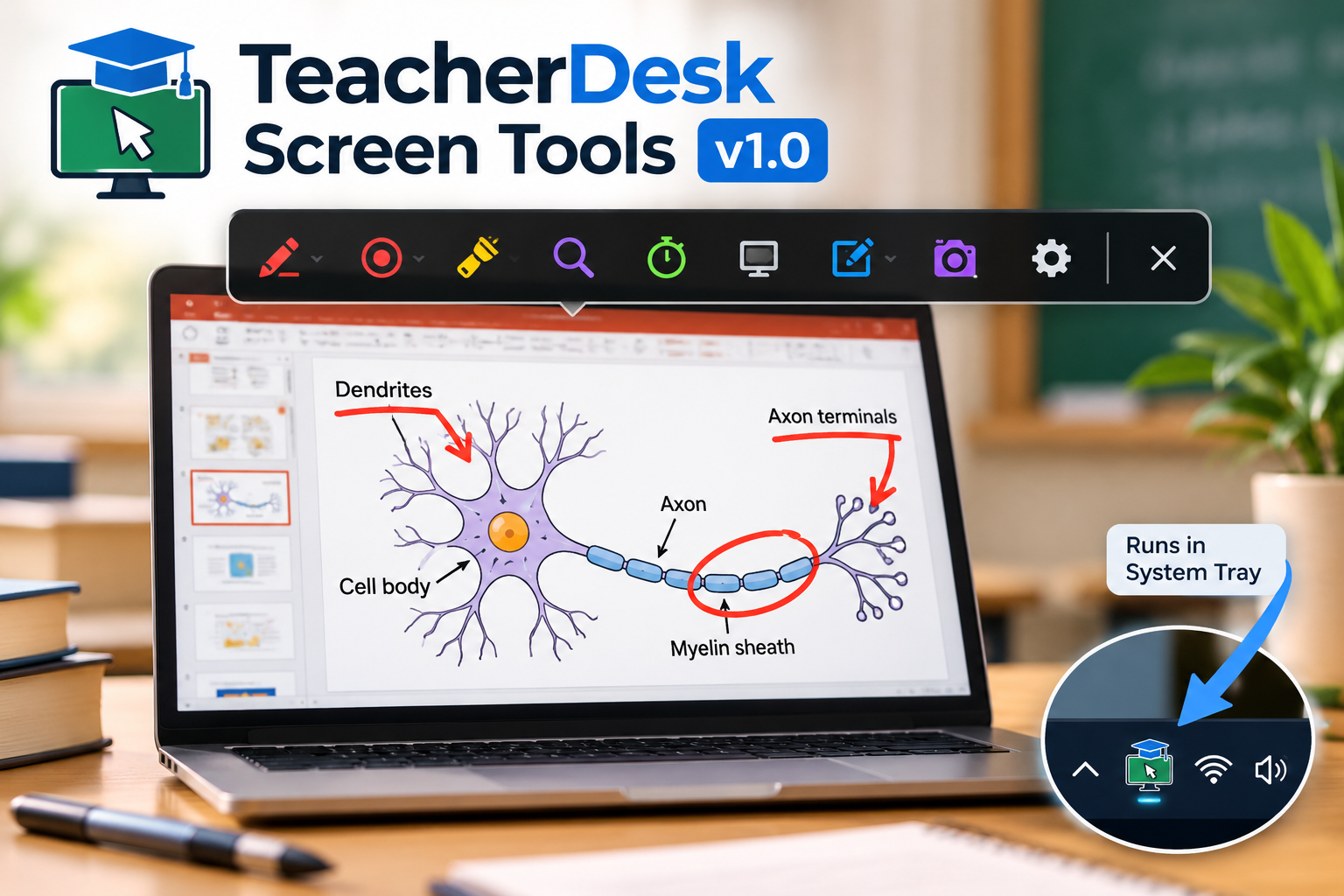
A lightweight, standalone desktop application for screen annotation, laser pointing, magnification, classroom timing, and more.
When teaching with a laptop and projector, small tasks can interrupt the flow of a lesson. You may need to highlight a formula, draw an arrow on a diagram, magnify a small section of a slide, or give students ten minutes to complete an activity.
These tasks are simple, but switching between applications to perform them can be inconvenient.
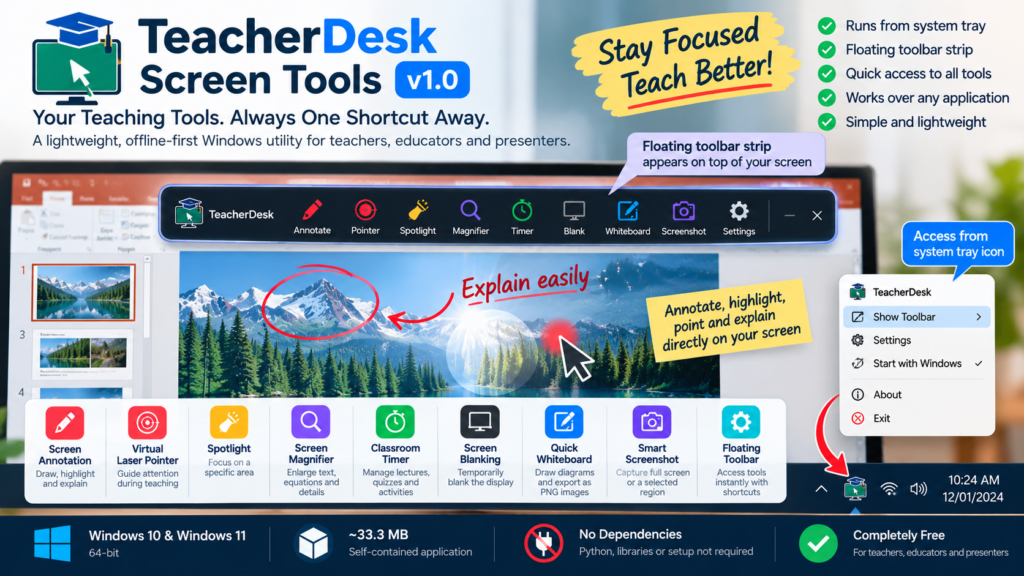
TeacherDesk Screen Tools is a small Windows utility developed to make these everyday presentation tasks easier to access. Instead of requiring a large application window to remain open, TeacherDesk runs from the Windows system tray and provides a floating toolbar for accessing its tools when needed.
Version 1.0 is available as a free, standalone Windows application.
What is TeacherDesk Screen Tools?
TeacherDesk is a desktop utility developed using Python and PySide6. It brings several presentation and classroom tools together in one application.
It is intended for teachers, engineering faculty, trainers, students presenting projects, and other users who regularly explain concepts using a computer screen.
The application is designed for offline-first use and does not require a separate Python installation or manual dependency setup.
Features
1. Screen Annotation
Draw directly over presentations and other desktop applications to explain concepts as you teach.
The annotation toolkit includes a pen, highlighter, straight lines, arrows, rectangles, ellipses, text, and eraser, along with color and stroke-width controls. Undo, redo, and clear options help manage annotations during a session.
This can be useful when explaining circuit diagrams, marking important passages in a PDF, highlighting code, or walking through a technical presentation.
2. Virtual Laser Pointer
The virtual laser pointer follows the mouse cursor, helping direct attention to a particular item on the screen.
Different pointer styles, including a dot, ring, and motion trail, make it easier to emphasize details during a presentation.
3. Spotlight
Spotlight dims the surrounding screen while keeping a selected area visible. Circular and rectangular shapes can help focus attention on a particular formula, diagram, line of code, or section of a slide.
4. Screen Magnifier
Small text, equations, and interface elements can be difficult to see on a classroom projector. The magnifier provides a mouse-following enlarged view, with zoom levels of 2×, 3×, 4×, and 6×.
5. Classroom Timer
The classroom timer is designed for lectures, quizzes, group activities, short assessments, and breaks.
It includes preset durations, custom timing, start and pause controls, quick time extensions, and visual alerts as the countdown approaches zero. A fullscreen display is available for situations where the timer needs to remain visible to the class.
6. Screen Blanking
Sometimes it is useful to temporarily remove the presentation from view and bring students’ attention back to the teacher.
Screen blanking covers the display with a black or white screen without requiring the presentation application to be minimized.
7. Quick Whiteboard
The whiteboard provides a blank canvas for working through ideas during a lecture or demonstration.
Different background styles, drawing tools, and PNG export make it suitable for quick diagrams, flowcharts, equations, and explanatory sketches.
8. Smart Screenshot
Capture the full screen or select a rectangular region. The utility is designed to copy captures to the Windows clipboard and save images locally, including annotations when supported by the active capture configuration.
9. Floating Presentation Toolbar
The toolbar brings the tools together in a compact interface that can be shown or hidden when required.
TeacherDesk also supports global keyboard shortcuts, allowing users to activate frequently used tools without repeatedly opening menus.
The application runs from the Windows system tray, keeping it accessible while other applications remain in the foreground.
Designed for a straightforward workflow
The intended workflow is simple:
- Launch TeacherDesk.
- Access it from the Windows system tray.
- Show the floating toolbar when a tool is needed.
- Select a tool or use its keyboard shortcut.
- Hide the toolbar and continue the presentation.
The objective is not to replace PowerPoint, a PDF reader, a whiteboard application, or other teaching software. It is to provide a set of complementary tools that can be accessed while using those applications.
Technical details
TeacherDesk Screen Tools v1.0 has the following specifications:
| Specification | Details |
|---|---|
| Application type | Windows desktop utility |
| Version | 1.0 |
| Technology | Python and PySide6 |
| Operating system | Windows 10 and Windows 11 |
| Architecture | 64-bit |
| Package size | Approximately 33.3 MB |
| Distribution | Self-contained Windows installer |
| Additional Python installation | Not required |
| Connectivity | Designed for offline-first use |
| Price | Free |
Actual performance and compatibility can vary with the computer, display configuration, and individual feature.
Download TeacherDesk Screen Tools v1.0
TeacherDesk is available free of charge.
Download TeacherDesk Screen Tools v1.0 for Windows
Open the GitHub Releases page and download TeacherDesk_Setup_v1.0.0.exe from the Assets section.
The installer is approximately 33.3 MB. After installation, launch TeacherDesk and access its tools from the system tray.
As with any Windows software downloaded from the internet, users should download it from the official release page and review any security warnings before proceeding.
Who might find it useful?
TeacherDesk may be useful for:
- School teachers and college faculty
- Engineering educators explaining diagrams, circuits, equations, and code
- Trainers conducting software demonstrations
- Students presenting projects or research
- Anyone who regularly presents from a Windows computer
The usefulness of the application will depend on individual teaching and presentation workflows. Feedback from people using it in real classroom conditions will help identify what needs improvement.
Closing thoughts
TeacherDesk Screen Tools started with a practical objective: make commonly needed presentation tools available from one small desktop utility.
It combines screen annotation, a laser pointer, spotlight, magnification, a classroom timer, screen blanking, a whiteboard, screenshots, and a floating toolbar in a standalone Windows application.
Version 1.0 is now available for free. If you try it, feedback about usability, compatibility, and missing features is welcome.