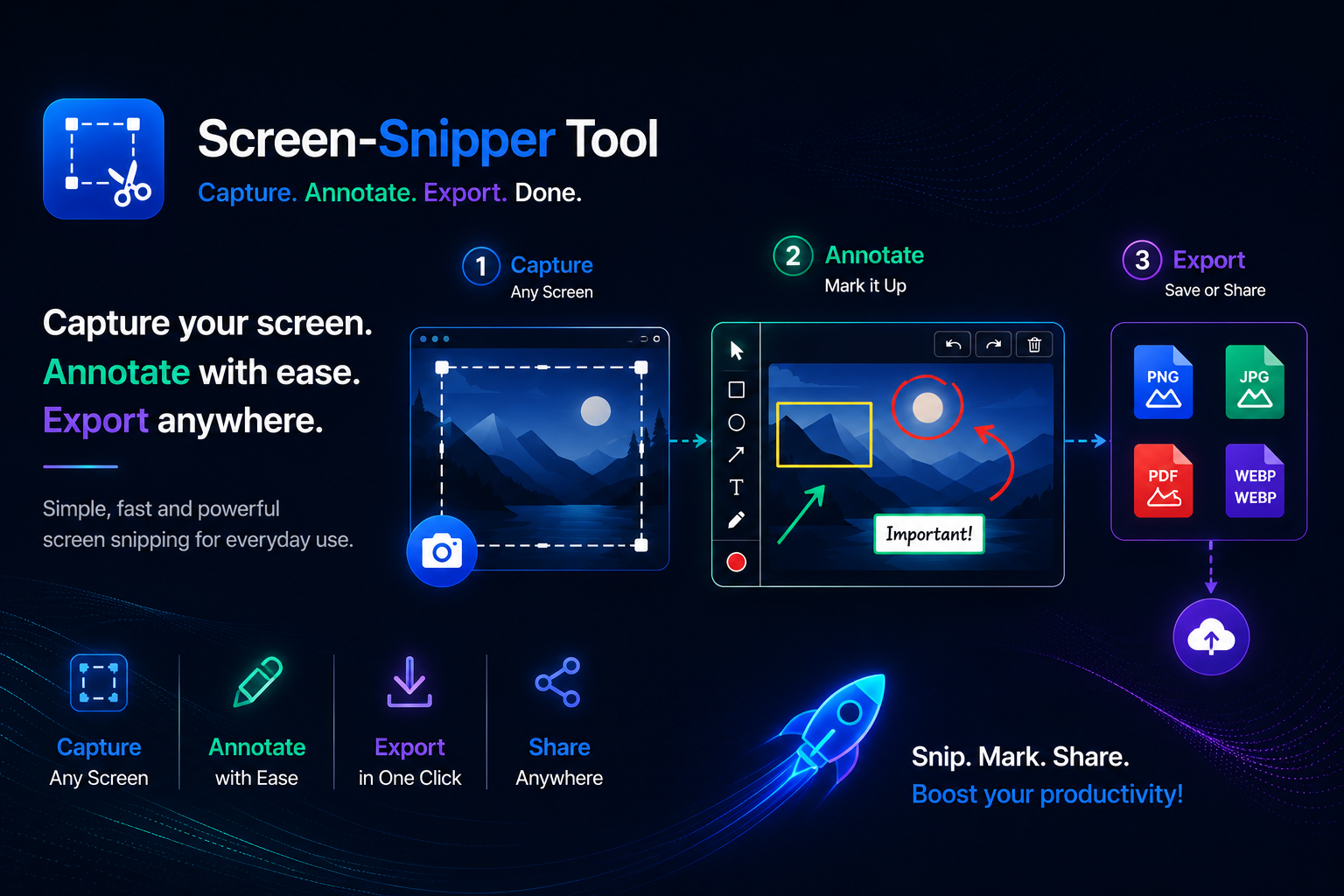
Taking screenshots is part of everyday work. Whether you’re documenting a bug, creating a tutorial, saving research, or sharing feedback with a colleague, the process often involves multiple steps: capture the screen, open an image editor, annotate the image, save it, and finally share it.
Screen Snipper Tool simplifies this workflow by bringing everything directly into your browser.
What is Screen Snipper Tool?
Screen Snipper Tool is a lightweight Chrome extension that allows you to capture the visible area of any webpage, crop it, annotate it with professional tools, and export it—all without opening another application.
Everything happens on the current webpage, making the experience faster and more efficient.
Why Use Screen Snipper Tool?
Traditional screenshot tools usually require switching between different applications just to make a simple annotation.
With Screen Snipper Tool, you can:
- Capture screenshots instantly
- Crop only the required area
- Add arrows, text, highlights, and shapes
- Export as PNG or PDF
- Copy directly to your clipboard
This streamlined workflow saves time and reduces distractions.
Powerful Features
Instant Screenshot Capture
Capture the visible area of your current webpage with a single click.
No complicated setup or extra software required.
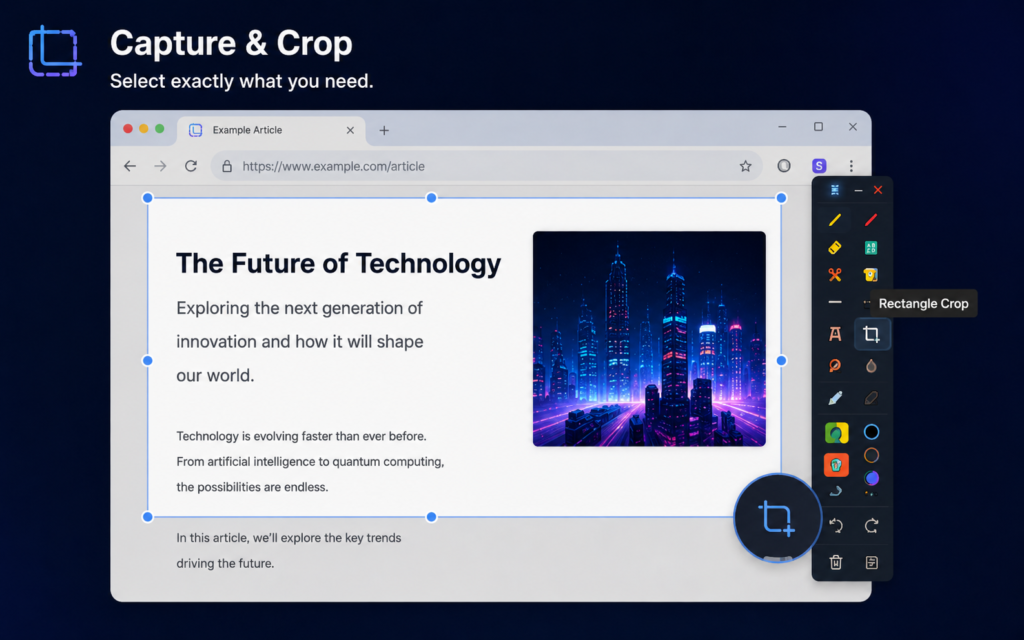
Smart Cropping
Choose exactly what you want to capture.
Supported crop modes include:
- Rectangle selection
- Freehand (Lasso) selection
Whether you’re selecting a paragraph, image, chart, or irregular shape, cropping is quick and precise.
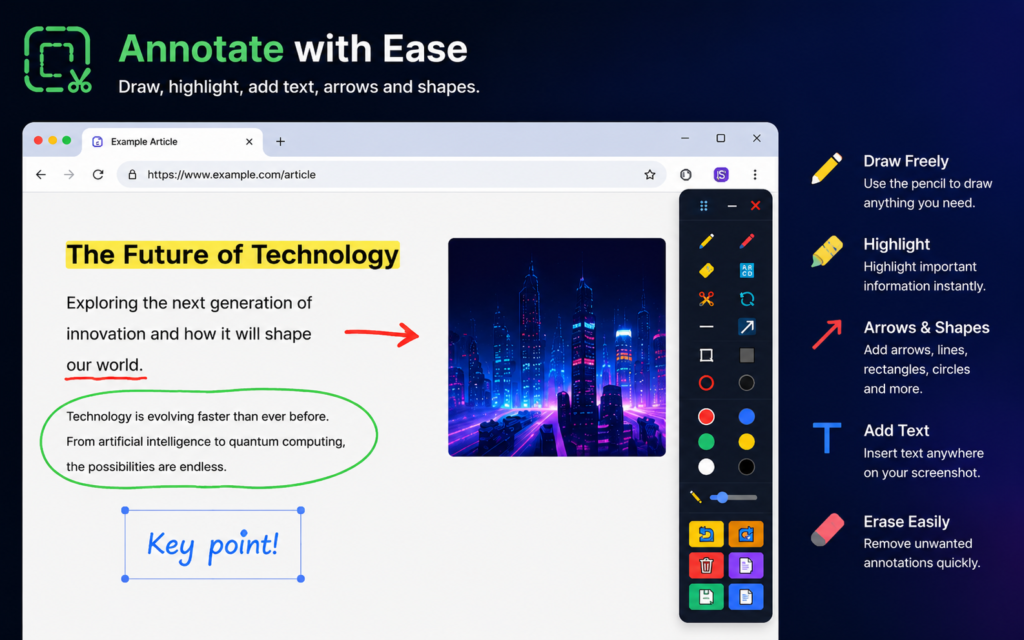
Professional Annotation Tools
Communicate ideas more effectively with built-in editing tools.
Available tools include:
- Pencil
- Highlighter
- Eraser
- Text
- Straight Lines
- Arrows
- Rectangles
- Circles
- Color Picker
- Brush Size Control
Everything you need to create professional-looking screenshots is available in one place.
Export Your Work
Once you’ve finished editing, you can:
- Save as PNG
- Export as PDF
- Copy directly to the clipboard
This makes it easy to share screenshots in emails, chat applications, documents, presentations, or issue trackers.
Floating In-Page Toolbar
Unlike many screenshot utilities that open separate windows or editors, Screen Snipper Tool displays a sleek floating toolbar directly on the webpage.
This allows you to continue working without breaking your flow.
Lightweight and Fast
Screen Snipper Tool is designed to be responsive and lightweight.
All screenshot processing and annotation occur locally within your browser, helping keep the extension fast while protecting your privacy.
Common Use Cases
Bug Reporting
Capture UI issues, annotate the problem area with arrows and text, and export the image for your development team.
Documentation
Create clear visual documentation for software, websites, and internal processes.
Tutorials
Prepare step-by-step guides with highlighted sections and annotations.
Research
Save important information from articles, reports, and websites with notes for future reference.
Design Feedback
Provide visual comments on layouts, interfaces, and prototypes.
Education
Capture educational content and add explanations or highlights for students.
Privacy First
Your privacy matters.
Screen Snipper Tool performs screenshot capture, cropping, and annotation locally inside your browser.
The extension does not upload your screenshots or webpage content to external servers, allowing you to work with confidence.
Why Choose Screen Snipper Tool?
✔ Fast screenshot capture
✔ Built-in annotation tools
✔ Rectangle and freehand cropping
✔ PNG and PDF export
✔ Clipboard support
✔ Floating in-page interface
✔ Lightweight performance
✔ Privacy-focused design
Get Started Today
If you’re looking for a faster way to capture and annotate screenshots without interrupting your workflow, Screen Snipper Tool is built for exactly that.
Install it from the Chrome Web Store and make screenshot editing a seamless part of your daily workflow.